
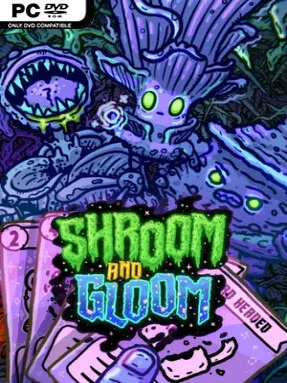
Game Overview
A nightmare forest of sentient fungus becomes the setting for a first-person roguelike that treats deckbuilding as both weapon and survival kit. Shroom and Gloom sends you through warped, hand-drawn dungeons packed with hostile mushrooms, grotesque creatures, and increasingly absurd opportunities for damage. Its tone is colorful, strange, and gleefully nasty rather than traditionally grim: enemies are not merely defeated, but sliced up, charred, seasoned, and turned into dinner. Every run pushes deeper toward the heart of the Gloom, where stronger threats demand smarter card synergies and a willingness to embrace chaos.
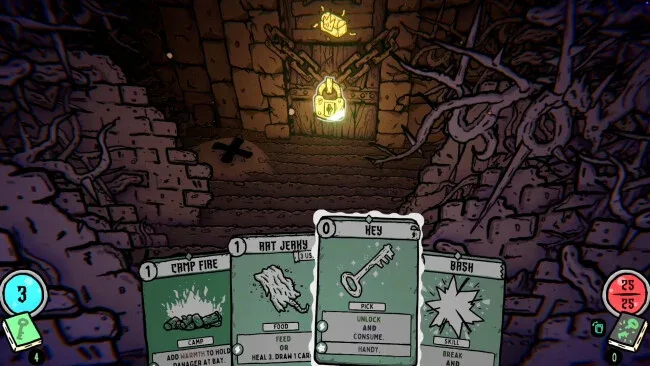
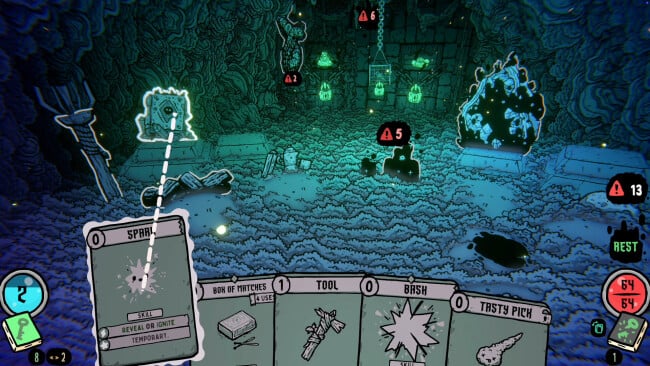
Combat revolves around a dedicated battle deck, letting you draw attacks, weapons, effects, and combo pieces to handle enemy groups from a close first-person perspective. A separate exploration deck governs dungeon navigation and adds another layer of strategy, providing ways to alter cards, uncover abilities, and obtain new tools between fights. The dual-deck structure means a powerful offensive build alone is not enough; how you travel and develop your options affects the shape of every run. Healing is especially inventive, since many foes can be cooked and eaten for recovery, while more elaborate ingredients can be thrown into a pot to create soups with run-changing benefits.
Its biggest strength is how aggressively it lets cards evolve. Basic starter options can be upgraded into ridiculous finishers, while rare finds can be reshaped into wildly overpowered engines built around enormous combos. The visual presentation also stands apart from most card roguelikes, mixing sketchy, high-contrast monster art with surprisingly dimensional environments that make each fungal corridor feel tangible and unstable. Fans of Slay the Spire-style buildcraft who want a messier, more immediate first-person format should find plenty to experiment with, while newcomers have a clear hook in its food-based healing and straightforward monster-smashing.
Screenshots
Installation
- Click the green button below to be redirected to UploadHaven.
- Wait 15 seconds, then hit “Free Download.” (Free downloads may be slower — upgrade to UploadHaven Pro for faster speeds.)
- Once downloaded, right-click the .zip file and choose “Extract to Shroom and Gloom.” (You’ll need 7-Zip for this.)
- Open the extracted folder and run the game as administrator.
- Enjoy! 🎮 If you see missing DLL errors, check the <strong>_Redist</strong> folder inside and install what’s needed.
System Requirements
- OS: Windows 10 x64 Bit
- Processor: Intel Core i3-6300 / AMD FX-8350
- Memory: 8 GB RAM
- Graphics: GeForce GTX 960 / Radeon RX 570
- DirectX: Version 11
- Storage: 13 GB available space
- Additional Notes: Low Quality setting, in 1080p, producing 30 FPS
Setup Guide & Troubleshooting
How do I fix missing DLL errors for Shroom and Gloom?
After extracting Shroom and Gloom, navigate to the _Redist or _CommonRedist folder inside the game directory and install DirectX, Vcredist, and any other dependencies included.
What should I do if the downloaded file is corrupted?
The full archive is 1.42 GB — make sure your download completed fully before extracting. Use 7-Zip to extract the files. If you still see a "file corrupted" error, re-download and try again.
Why should I run the game as administrator?
Right-click the game executable and select "Run as Administrator" to avoid save file issues and permission errors. This is especially important on the first launch.
How do I update my GPU drivers for this game?
Shroom and Gloom requires a GeForce GTX 960 / Radeon RX 570 or equivalent. Update your NVIDIA or AMD drivers to the latest version for the best performance.
The game won't launch — what should I try?
This game requires Version 11. Try running in compatibility mode, install the latest DirectX runtime, or install the All-in-One VC Redist Package.
My antivirus is blocking the game — is it safe?
Antivirus false positives are common with pre-installed games. Temporarily pause your antivirus during extraction to prevent it from quarantining game files. You can re-enable it after the extraction completes.