
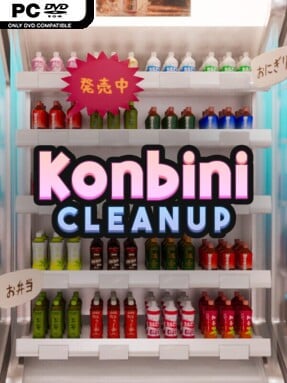
Game Overview
A Japanese convenience store becomes a surprisingly satisfying restoration project, trading high scores and frantic objectives for the simple pleasure of putting everything where it belongs. Konbini Cleanup is a cozy first-person organizing simulator set among the familiar shelves of drinks, instant noodles, sweets, magazines, and ready-to-eat snacks. Its tone stays calm and methodical: there are no customers to serve, no looming shift deadline, and no punishment for taking a careful look at every label. The appeal comes from watching a cluttered shop gradually regain the clean, densely stocked order associated with a well-run konbini.
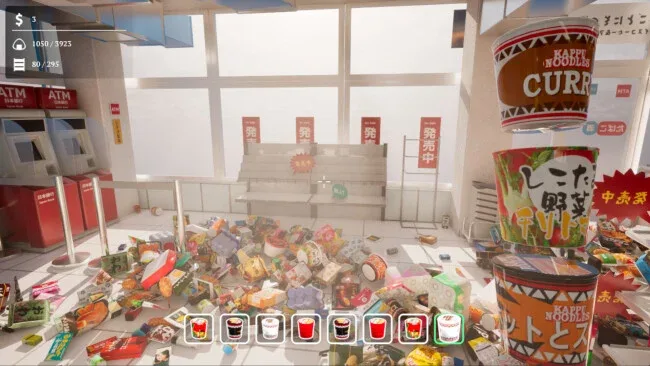
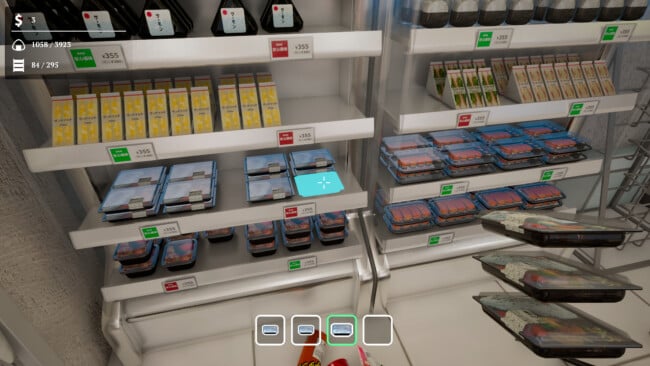
Players pick up misplaced products, identify the appropriate department, and return each item to the shelf space beneath its matching price tag. The work covers more than 2,900 objects spread across over 15 sections, so the basic loop of carrying, sorting, and arranging has enough scale to feel like a complete clean-up rather than a short novelty. Progress is entirely self-directed, letting players finish one aisle at a time or wander between tasks as they notice misplaced goods. Upgrades improve movement speed and reach, while a handful of special abilities help reduce the busywork once the later shelves start demanding more back-and-forth trips.
What makes it work is the tangible visual payoff: bare food racks become orderly lines of onigiri, chaotic snack shelves gain their color-coded rhythm, and untidy magazine displays settle into satisfying stacks. Rather than turning organization into a puzzle with harsh rules, it leans into the low-stakes satisfaction of games such as PowerWash Simulator or A Little to the Left, though its first-person store setting gives the routine a distinct character. The huge item count makes it well suited to players who enjoy zoning out with podcasts, music, or a second screen, while completionists can methodically perfect every department. Anyone seeking action, story, or management depth may find the task repetitive, but players who find peace in clean spaces and visible progress will likely enjoy its unhurried pace.
Screenshots
Installation
- Click the green button below to be redirected to UploadHaven.
- Wait 15 seconds, then hit “Free Download.” (Free downloads may be slower — upgrade to UploadHaven Pro for faster speeds.)
- Once downloaded, right-click the .zip file and choose “Extract to Konbini Cleanup.” (You’ll need 7-Zip for this.)
- Open the extracted folder and run the game as administrator.
- Enjoy! 🎮 If you see missing DLL errors, check the <strong>_Redist</strong> folder inside and install what’s needed.
System Requirements
- Requires a 64-bit processor and operating system
- OS: Windows 10+
- Processor: 2.5 GHz Quad-core Intel or AMD processor
- Memory: 4 GB RAM
- Graphics: NVIDIA GeForce GTX 1050 | AMD Radeon RX-580
- Storage: 500 MB available space
Setup Guide & Troubleshooting
How do I fix missing DLL errors for Konbini Cleanup?
After extracting Konbini Cleanup, navigate to the _Redist or _CommonRedist folder inside the game directory and install DirectX, Vcredist, and any other dependencies included.
What should I do if the downloaded file is corrupted?
The full archive is 2.09 GB — make sure your download completed fully before extracting. Use 7-Zip to extract the files. If you still see a "file corrupted" error, re-download and try again.
Why should I run the game as administrator?
Right-click the game executable and select "Run as Administrator" to avoid save file issues and permission errors. This is especially important on the first launch.
How do I update my GPU drivers for this game?
Konbini Cleanup requires a NVIDIA GeForce GTX 1050 | AMD Radeon RX-580 or equivalent. Update your NVIDIA or AMD drivers to the latest version for the best performance.
The game won't launch — what should I try?
Try running in compatibility mode, install the latest DirectX runtime, or install the All-in-One VC Redist Package.
My antivirus is blocking the game — is it safe?
Antivirus false positives are common with pre-installed games. Temporarily pause your antivirus during extraction to prevent it from quarantining game files. You can re-enable it after the extraction completes.