

Screenshots
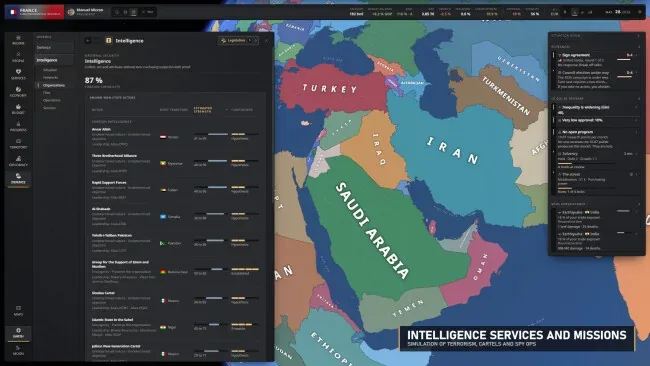
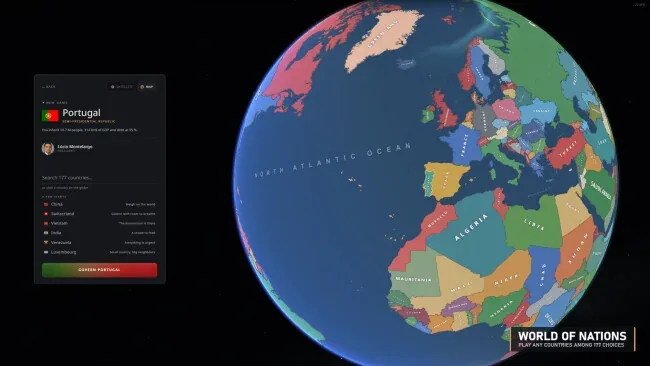
Installation
- Select the <strong>Download</strong> button at the top of this page to open UploadHaven.
- On UploadHaven, wait for any countdown, then select <strong>Free Download</strong>. Optional: UploadHaven Pro for faster downloads.
- When complete, extract the archive to a <strong>Geoplanetical</strong> folder using 7-Zip.
- Open the extracted folder and start the game normally.
- For errors, check <strong>Setup Guide & Troubleshooting</strong> below. Keep your security software enabled.
System Requirements
- OS: Windows 10 64 bits
- Processor: i5-8400 / Ryzen 5 2600
- Memory: 12 GB RAM
- Graphics: GTX 1050 Ti 4 Go / RX 570 4 Go
- DirectX: Version 11
- Storage: 4 GB available space
- Sound Card: DirectX-compatible audio device
Setup Guide & Troubleshooting
Is Geoplanetical (v1.0.0) completely free?
Yes. The listing is distributed as a free Windows download with a 3.08 GB archive, and the license type is Free. You can optionally register for UploadHaven Pro to speed up the download, but that is not required to get the game.
How do I install Geoplanetical (v1.0.0)?
Select the Download button to open UploadHaven, wait for any countdown, then choose Free Download. Once the 3.08 GB archive finishes, extract it to a Geoplanetical folder using 7-Zip and start the game normally from that folder. There is no separate installer to run.
What are the system requirements for Geoplanetical?
You need Windows 10 64-bit, an i5-8400 or Ryzen 5 2600 processor, 12 GB of RAM, a GTX 1050 Ti 4 Go or RX 570 4 Go graphics card, DirectX Version 11, a DirectX-compatible sound card and 4 GB of available storage space.
Why does the game show a missing DLL error?
After extracting, open the _Redist or _CommonRedist folder inside the game directory and install DirectX, Vcredist and any other dependencies included there. That usually resolves missing runtime errors.
Is the download safe?
A download source alone cannot confirm that a file is safe. Keep your security software enabled, review any detection details, and do not run or restore a flagged file unless you have verified it is a false positive. If you are unsure, leave it quarantined.